STRATEGIC OVERVIEW
High-Performance Web Animations: Mastering Framer Motion and GPU-Accelerated Layouts By Vatsal Shah | June 27, 2026 | 15 min read Table of Contents - Motion Optimization: The Critical Rendering Path and the Paint Loop - GPU Acceleration: Forcing Compositor Layers for Fluid.
High-Performance Web Animations: Mastering Framer Motion and GPU-Accelerated Layouts
By Vatsal Shah | June 27, 2026 | 15 min read
Table of Contents
- Motion Optimization: The Critical Rendering Path and the Paint Loop
- GPU Acceleration: Forcing Compositor Layers for Fluid Transitions
- Taming INP & CLS: Solving Layout Engine Bottlenecks in React/Next.js
- Micro-Interaction Suite: Implementing Luxury Animations at Scale
- Animation Execution Performance Comparison Matrix
- What to Do Monday Morning: 3 Steps to Profile Web Animations in Chrome DevTools
- Key Takeaways
- FAQ
- About the Author
- Conclusion
Motion Optimization: The Critical Rendering Path and the Paint Loop
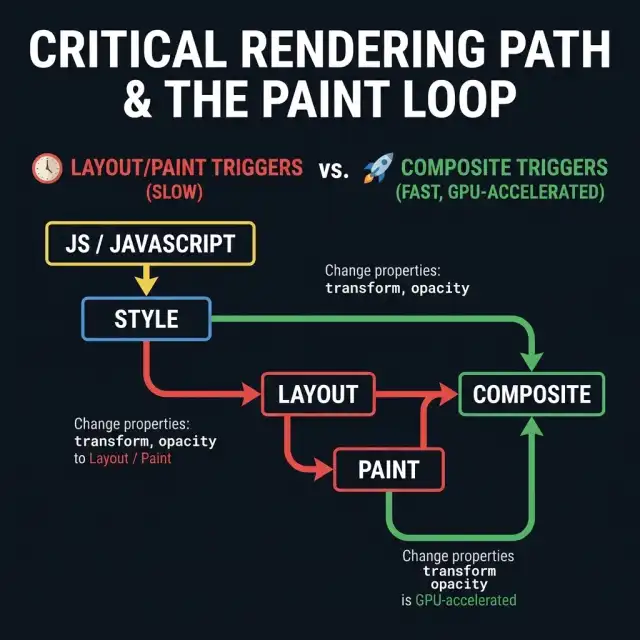
To build high-performance Framer Motion animations in 2026, you must first master how the browser handles screen updates. When an element is animated, the browser runs a sequence of steps known as the Critical Rendering Path:
JavaScript/Web APIs -> Style Recalculation -> Layout -> Paint -> Composite- JavaScript: Modifies the DOM or style properties.
- Style: Computes which CSS rules apply to which elements.
- Layout: Calculates the exact geometry (width, height, top, left) of every element on the page.
- Paint: Fills in the actual pixels (text, colors, borders, shadows, images) into bitmap layers.
- Composite: Sends these layers to the GPU to be drawn onto the screen.
If your animation modifies properties like width, height, margin, top, or left, the browser is forced to run the Layout step. This triggers a cascade where the geometry of the animated element and all its sibling or parent elements must be recalculated. This is known as Layout Thrashing.
If your animation modifies properties like background-color, box-shadow, or color, the browser skips Layout but must run Paint. Redrawing pixel layers is CPU-intensive and can cause frame drops on low-powered mobile devices.
To achieve fluid, 60fps or 120fps animations, you must modify properties that skip both Layout and Paint, going straight to the Composite phase. Only two CSS properties can be fully offloaded to the GPU compositor layer: transform (scale, rotate, translate) and opacity.
PAIN POINT ANALYSIS
- Triggering Reflows
- Using Framer Motion's
animate={{ left: 100 }}instead ofanimate={{ x: 100 }}triggers layout reflows on every single frame. - CPU Bottlenecks
- Heavy paint loops cause CPU saturation, leading to main-thread blockage and input lag.
- Main Thread Blockage
- Complex JavaScript animation engines conflict with user input events, driving up INP (Interaction to Next Paint) latency.
GPU Acceleration: Forcing Compositor Layers for Fluid Transitions
When you animate transform or opacity, the browser does not automatically run the animation on the GPU. It must first promote the element to a separate Compositor Layer. This process is known as Hardware Acceleration.
Promoting Elements to GPU Layers
You can force a browser to create a new compositor layer for an element by applying the following CSS:
.accelerated-element {
  will-change: transform, opacity;
  transform: translate3d(0, 0, 0); /* Legacy fallback trick */
}
In Framer Motion, you can ensure GPU promotion by using the willChange property directly in the style block:
import { motion } from 'framer-motion';

export const LuxuryButton = () => (
  <motion.button
    whileHover={{ scale: 1.05 }}
    whileTap={{ scale: 0.95 }}
    style={{ willChange: "transform" }}
    className="px-6 py-3 bg-teal-500 text-white rounded-lg shadow-md"
  >
    Interact
  </motion.button>
);
The Overhead of Too Many Layers
While promoting elements to the GPU eliminates paint cycles, it is not a silver bullet. Every compositor layer requires dedicated VRAM (Video RAM) on the GPU. If you promote hundreds of elements simultaneously, you will trigger Memory Bloat. This leads to slow layer upload times, context switching latency on the GPU, and severe scrolling jank on mobile devices.
The rule of thumb: Promote only active, parent container frames, or highly interactive elements, and demote them once the animation completes.

Taming INP & CLS: Solving Layout Engine Bottlenecks in React/Next.js
Two critical Core Web Vitals directly clash with poorly optimized animations: Cumulative Layout Shift (CLS) and the newly standardized Interaction to Next Paint (INP).
Solving Cumulative Layout Shift (CLS)
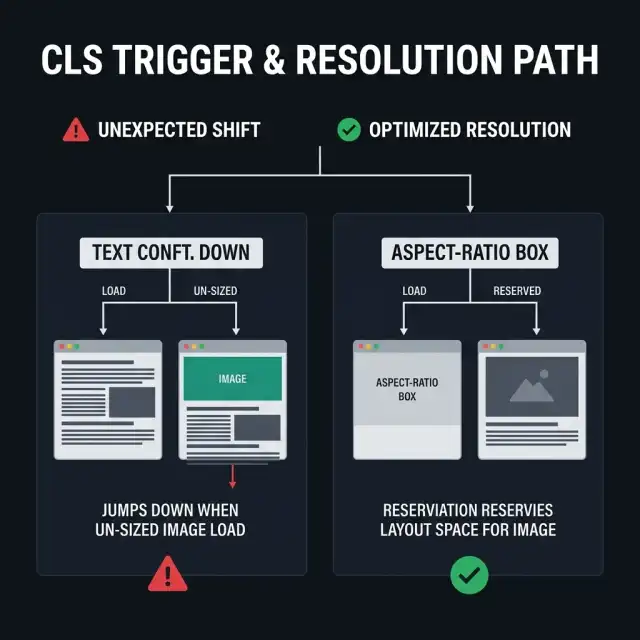
CLS measures the sum total of all unexpected layout shifts that occur during the lifespan of a page. A common culprit is Framer Motion's AnimatePresence used to dynamically mount and unmount components:
// Dangerous CLS pattern: surrounding elements jump when this expands
<AnimatePresence>
  {isOpen && (
    <motion.div
      initial={{ height: 0 }}
      animate={{ height: "auto" }}
      exit={{ height: 0 }}
      className="overflow-hidden"
    >
      <p>Hidden content block</p>
    </motion.div>
  )}
</AnimatePresence>
Because this animation adjusts height: "auto", it forces Layout reflows on every tick, moving subsequent elements on the page.
To fix this:
- Reserve layout space beforehand using strict CSS grid or aspect-ratio boxes.
- Use scale-based transitions (
scaleY,originY: 0) instead of height calculations. - If height transitions are mandatory, apply
layoutattributes to surrounding elements so Framer Motion can perform FLIP (First, Last, Invert, Play) transformations on GPU layers instead of standard browser reflows.
Optimizing Interaction to Next Paint (INP)
INP (which replaced FID in 2024) measures page responsiveness by tracking the latency of all user interactions (clicks, taps, keypresses) during the page lifecycle. If a user clicks a button while a heavy Framer Motion transition is executing, the main thread may be blocked, driving the INP score into the red (>200ms).
To optimize Framer Motion for low INP:
- Use the
useReducedMotionhook to disable heavy transitions for users with system preferences set to reduce animation. - Offload complex state updates from the animation frame loop using React's
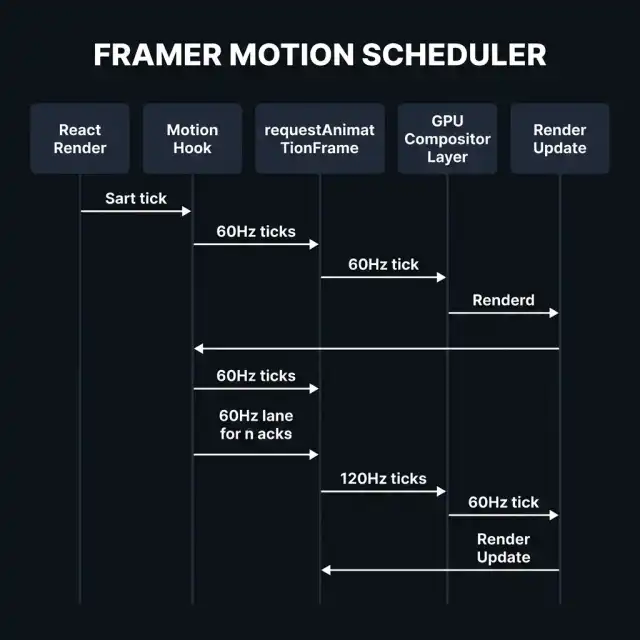
useTransitionorrequestAnimationFrame. - Ensure Framer Motion's internal loop runs within the standard layout request animation frame lifecycle to prevent main-thread blockage.
Micro-Interaction Suite: Implementing Luxury Animations at Scale
Let's implement a complete suite of performance-optimized micro-interactions in a Next.js environment. These utilize GPU-only properties, have strict layouts to prevent CLS, and maintain a zero-main-thread footprint.
First, let's verify our configuration file requirements. If your codebase uses modern compiler structures (as reviewed in React Compiler in Production), Framer Motion wrappers must be white-listed to avoid unwanted re-renders.
1. The Haptic Card Hover
This card uses scale and translate3d (via x and y) to create a fluid, hardware-accelerated lift effect.
// HoverCard.tsx
"use client";

import React from 'react';
import { motion } from 'framer-motion';

export const HoverCard = ({ title, description }: { title: string; description: string }) => {
  return (
    <motion.div
      whileHover={{
        scale: 1.02,
        y: -4,
        boxShadow: "0px 10px 20px rgba(0, 0, 0, 0.15)"
      }}
      transition={{ type: "spring", stiffness: 300, damping: 20 }}
      style={{ willChange: "transform" }}
      className="p-6 bg-slate-900 border border-slate-800 rounded-xl cursor-pointer"
    >
      <h3 className="text-xl font-bold text-white mb-2">{title}</h3>
      <p className="text-slate-400 text-sm">{description}</p>
    </motion.div>
  );
};
2. The Fluid Drawer (Layout Transition)
To animate dynamic layout shifts without reflow, we use Framer Motion's layoutId. This maps transitions seamlessly across different DOM elements using the FLIP technique.
// LayoutTabMenu.tsx
"use client";

import React, { useState } from 'react';
import { motion } from 'framer-motion';

const tabs = ["Strategy", "Architecture", "Engineering"];

export const LayoutTabMenu = () => {
  const [activeTab, setActiveTab] = useState(tabs[0]);

  return (
    <div className="flex gap-4 p-2 bg-slate-950 rounded-lg border border-slate-900">
      {tabs.map((tab) => (
        <button
          key={tab}
          onClick={() => setActiveTab(tab)}
          className="relative px-4 py-2 text-sm font-medium text-slate-400 transition-colors duration-200 hover:text-white"
        >
          {activeTab === tab && (
            <motion.div
              layoutId="active-pill"
              className="absolute inset-0 bg-teal-500/10 border border-teal-500/20 rounded-md"
              transition={{ type: "spring", stiffness: 380, damping: 30 }}
              style={{ willChange: "transform" }}
            />
          )}
          <span className="relative z-10">{tab}</span>
        </button>
      ))}
    </div>
  );
};
Animation Execution Performance Comparison Matrix
Choosing the wrong properties or engine leads to massive performance drops. Refer to this decision table to audit your animation strategy:
| Animation Type | CSS Properties Used | Rendering Step | Performance Profile | Impact on INP/CLS |
|---|---|---|---|---|
| Layout-Driven (Avoid) | width, height, top, left, margin | Layout -> Paint -> Composite | Poor (Main thread bottleneck, reflows) | High risk of CLS, drives up INP latency. |
| Paint-Driven (Minimize) | background-color, box-shadow, color | Paint -> Composite | Moderate (CPU intensive repaints) | Low CLS risk, moderate INP impact. |
| Compositor-Driven (Target) | transform (translate, scale, rotate), opacity | Composite only | Excellent (GPU accelerated, 120fps) | Zero CLS risk, minimizes INP impact. |
| FLIP Layouts (Framer Motion) | Framer Motion 'layout' attribute | Composite only (via inversions) | High (Calculates bounds, animates scale) | Resolves unexpected shifts, stabilizes CLS. |
What to Do Monday Morning: 3 Steps to Profile Web Animations in Chrome DevTools
To identify animation performance bottlenecks in your current codebase, perform these checks:
1. Enable Paint Flashing
Open Chrome DevTools, click the three-dots menu -> More Tools -> Rendering. Check the box for Paint Flashing.
Now interact with your web application. If sections of the page flash green outside the animated elements themselves, you have paint leakage. If the entire page flashes green during a slider transition, you are triggering page-wide repaints. Your task is to refactor those elements to use GPU-only styles (transform and opacity).
2. Inspect the Layer Tree
In the same Rendering panel, check Layer Borders. Chrome will draw borders around elements promoted to separate compositor layers (cyan outlines for layer borders, yellow outlines for GPU-accelerated layers).
Verify that your hover cards or micro-interactions display yellow boxes only during interaction. If the entire page is a grid of yellow outlines, you have over-promoted elements to the GPU, causing VRAM memory pressure.
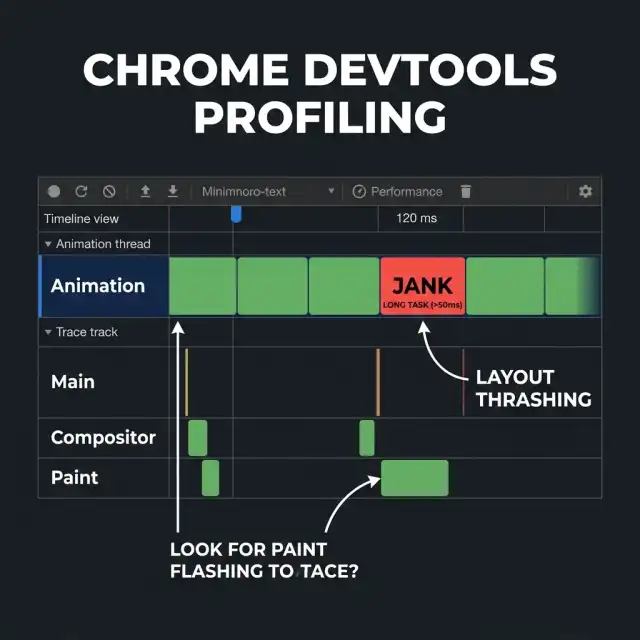
3. Check for Long Tasks (>50ms) in the Performance Panel
Record a performance trace in Chrome DevTools while triggering animations. Look at the Main Thread lane. If you see red diagonal lines indicating Long Tasks, click them to inspect the call stack.
If the delay is caused by requestAnimationFrame handler execution, look for layout thrashing (such as reading an element's offsetHeight right after setting a style property). Refactor by grouping your reads first, then executing your writes.
Key Takeaways
- Skipping reflows is mandatory - only transform and opacity animate entirely within the GPU compositor lane.
- will-change: transform promotes elements to the GPU, eliminating expensive paint cycles.
- Layer limits are critical - over-promoting elements to compositor layers leads to VRAM memory pressure and scroll stutter.
- AnimatePresence without reserved space causes CLS - always use aspect-ratio boxes or layout id mappings to preserve boundaries.
- Interaction to Next Paint (INP) measures main-thread freedom - group DOM reads and writes separately to avoid layout thrashing.
- Profile early with Chrome Rendering tools - use paint flashing and layer borders to visually audit rendering bottlenecks.
FAQ
About the Author
Vatsal Shah is a technology consultant and frontend performance engineer who builds ultra-fast web interfaces and scalable web app architectures. He works with tech teams to optimize rendering pathways, resolve Core Web Vitals issues, and build high-performance interactive interfaces.
Connect with Vatsal on LinkedIn or discover more performance guides at shahvatsal.com.
Conclusion
By routing your animation properties to GPU compositor layers, resolving layout constraints to prevent CLS, and profiling layout execution loops, you ensure your React applications maintain exceptional responsiveness.
To leverage these frontend performance gains across your application lifecycles, read React Compiler in Production: Refactoring Legacy Codebases. And if you are building the backend architectures that serve these apps, check out The AI Gateway Pattern: Multi-Model Routing to manage API traffic efficiently.
